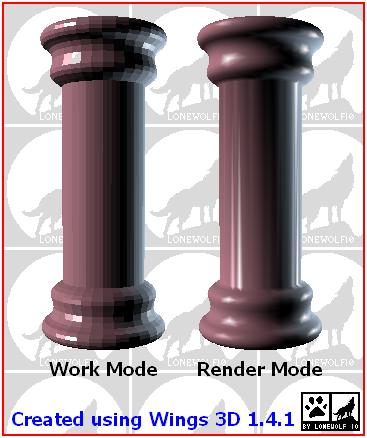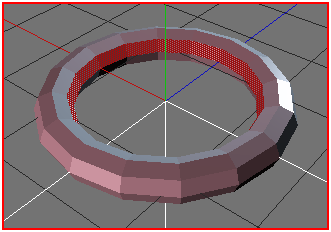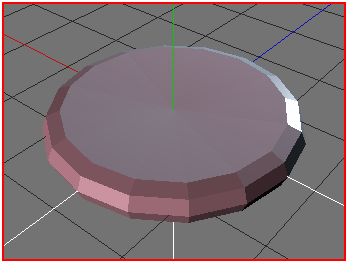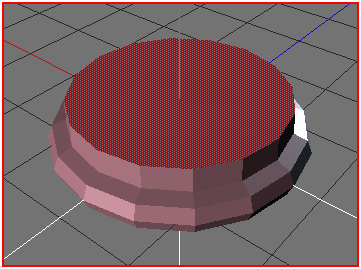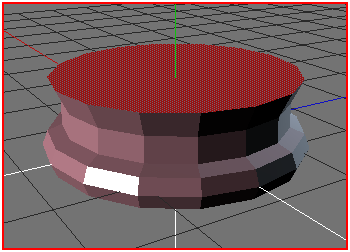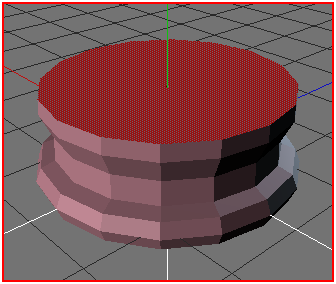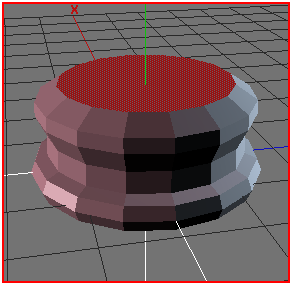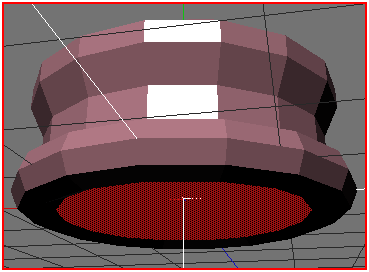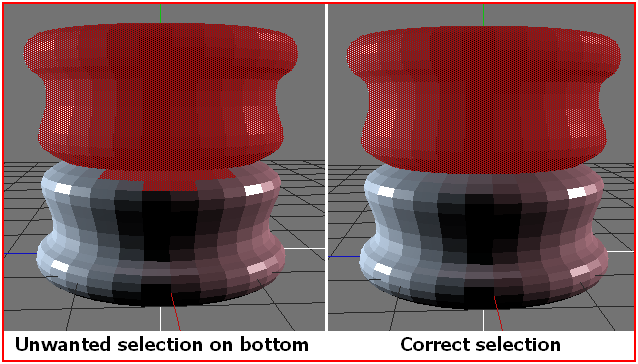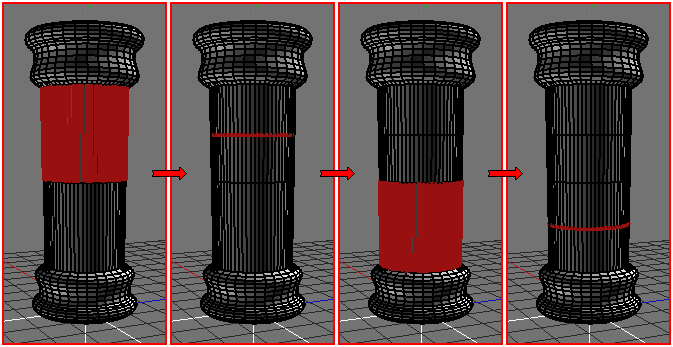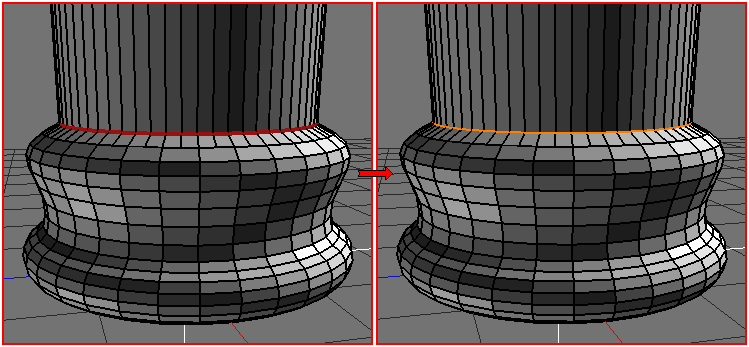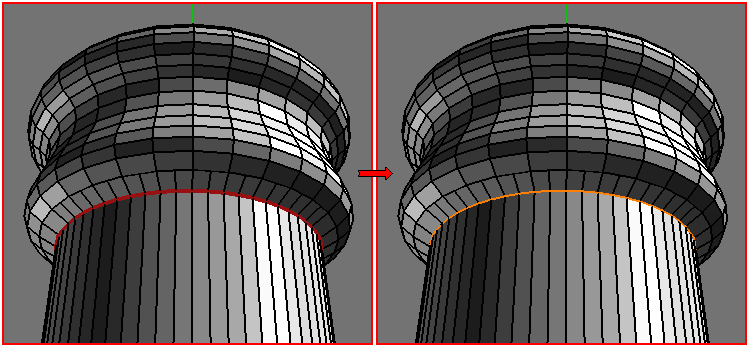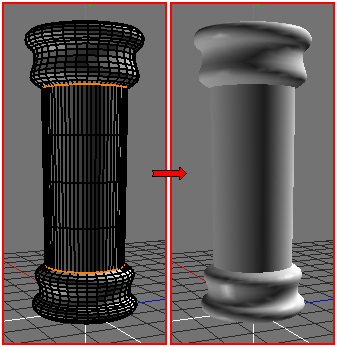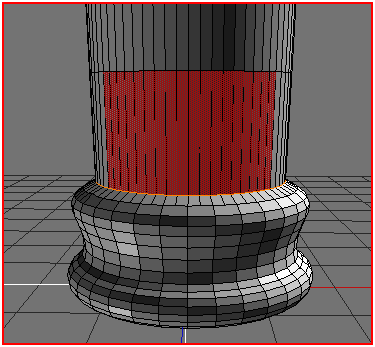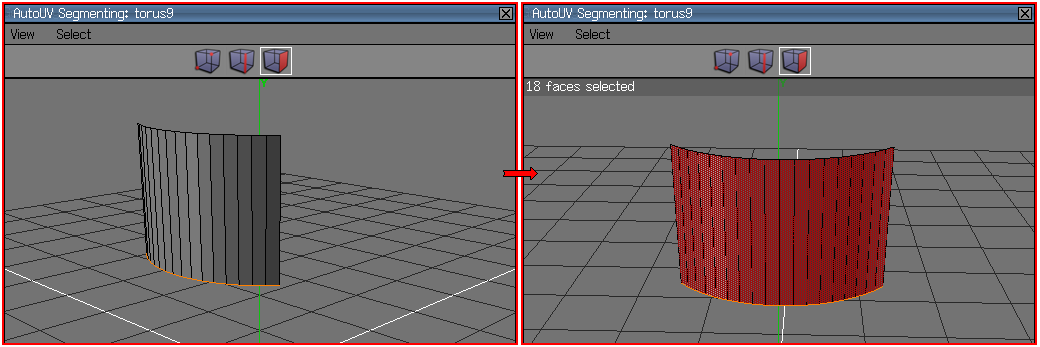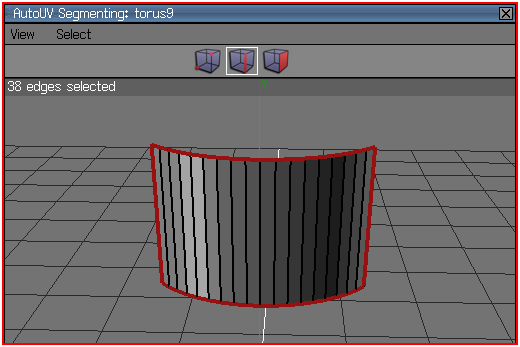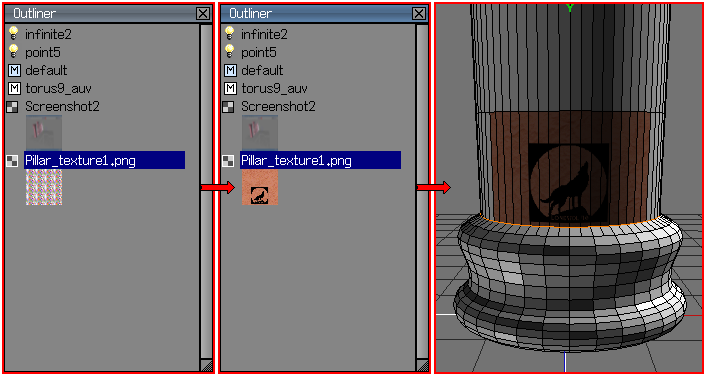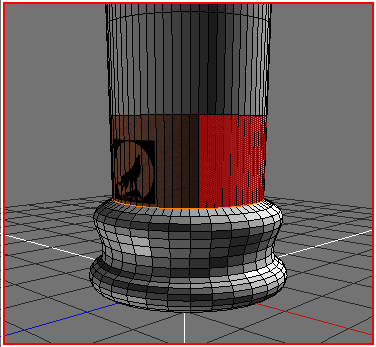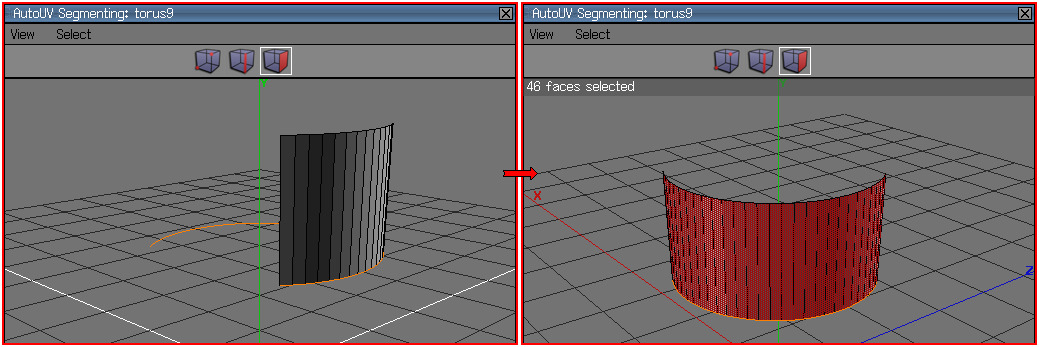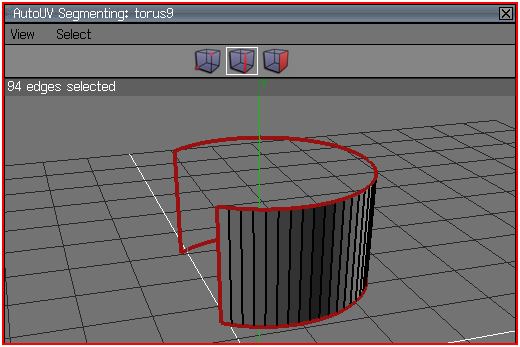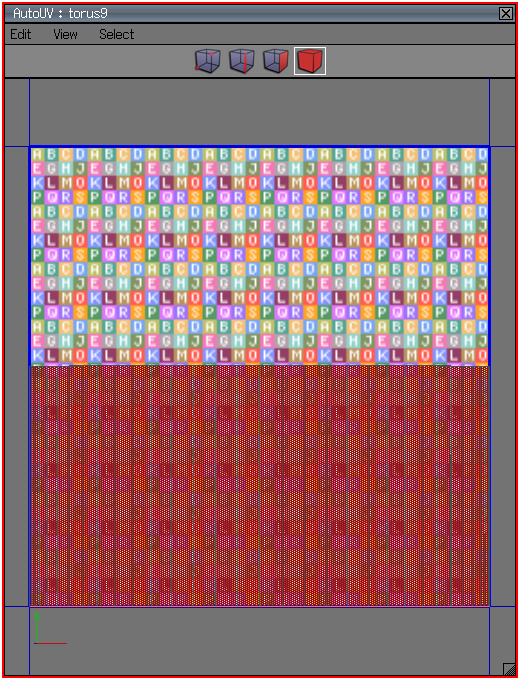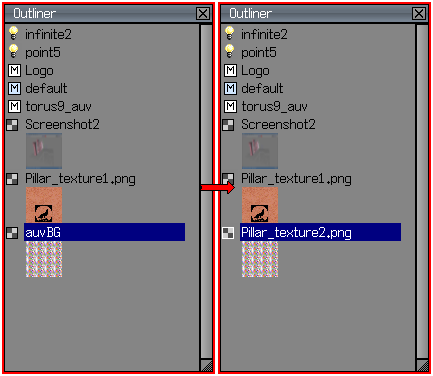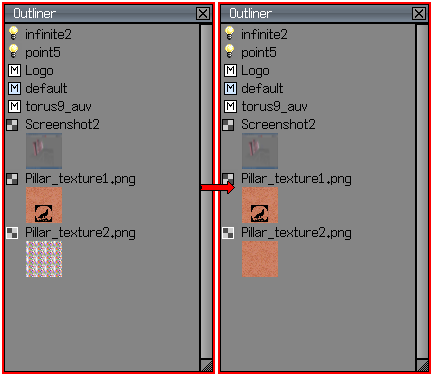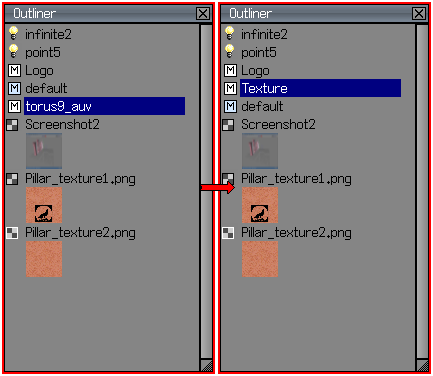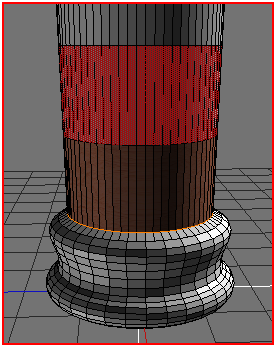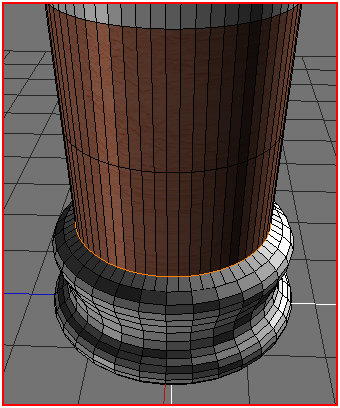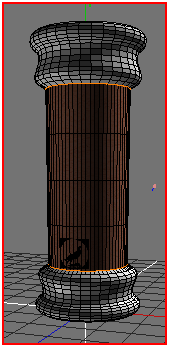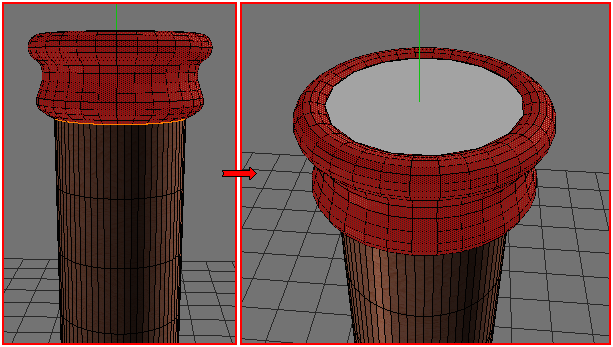
Step 18
|
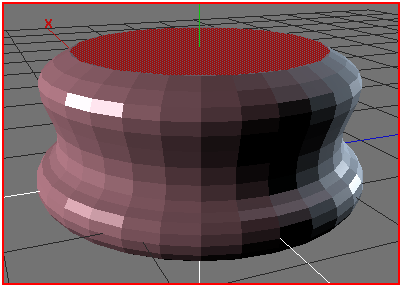
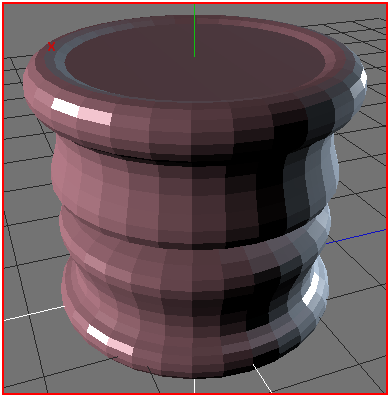
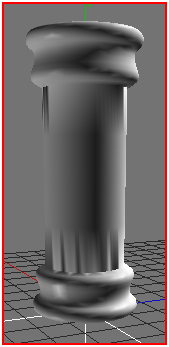
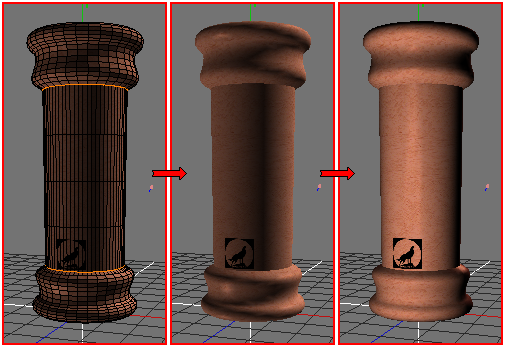
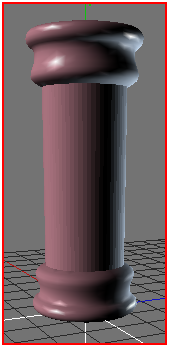
- Hard edges can only do so much. Repeat step 16, but select "Soft" hardness instead.
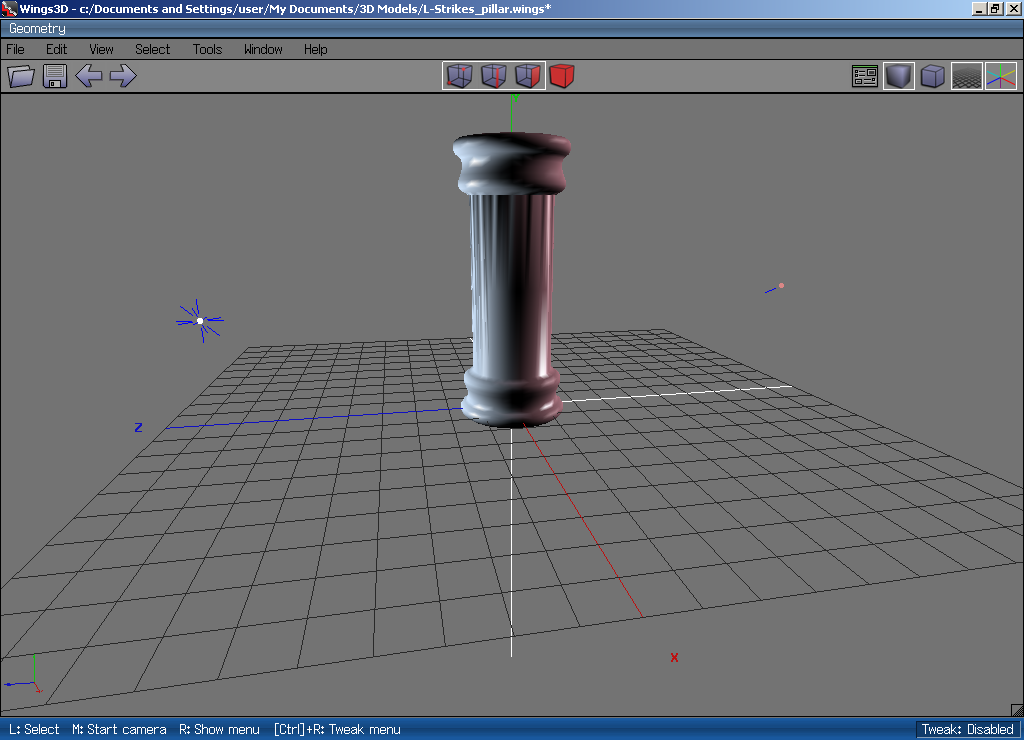
- To make things easier to see, we will switch off the scene lights.
- From the drop-down menu at the top of the window, select "View" and then "Scene Lights"
- Select "Edge mode"
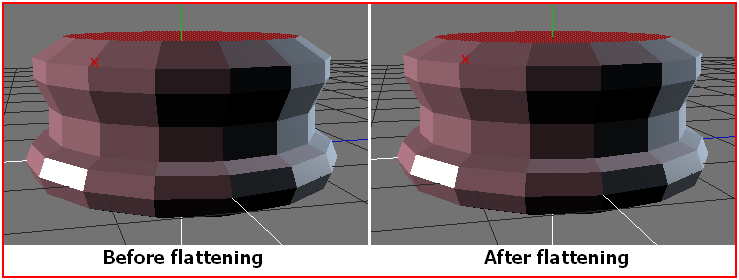
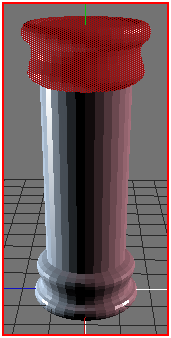
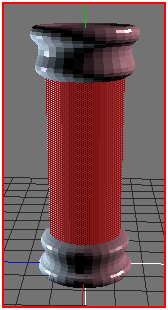
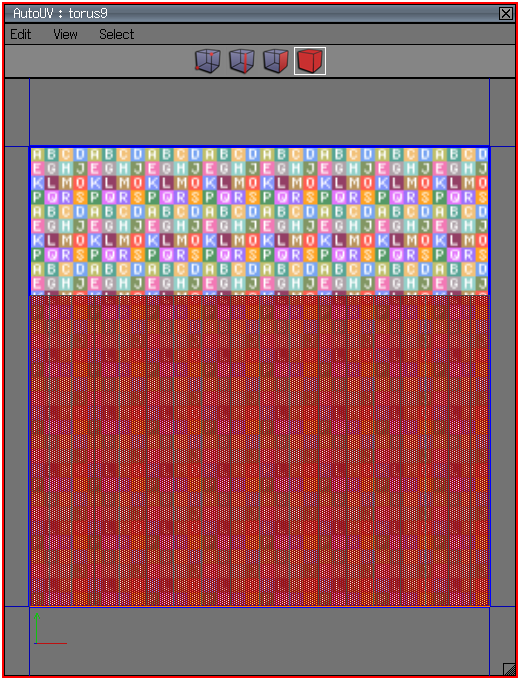
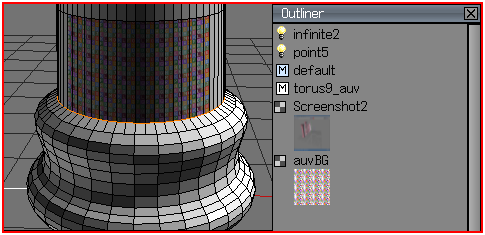
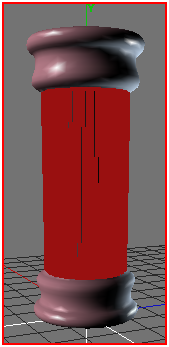
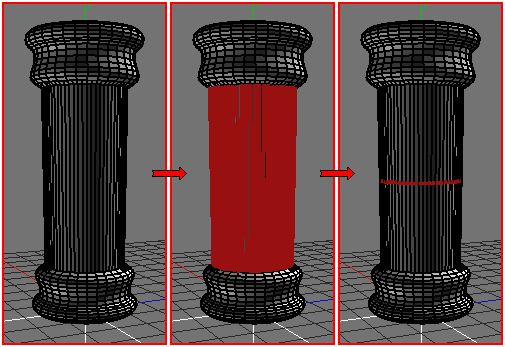
- Select middle of pillar (see step 18, left)
- Right-click and highlight "Flow Connect"
- Select "Flow connect and move edges into place" (right mouse button)
- Press the tab key, enter 0% and click "Ok"
- Selected edges will be subdivided into 2, forming new vertices. The new vertices will now be auto-connected forming new edges, and auto-selected (see step 18, left)
|